
The server’s load is high due to a denial-of-service attack.
In DoS attacks, multiple connections are established from an IP address, and BitNinja will block the IP address if the number of connections reaches our threshold.
BitNinja offers indirect protection against DDoS
No software-based solution offers direct protection against DDoS attacks as all requests need to be processed in some way. True DDoS mitigation can be implemented only via some sort of hardware-based solution.
No software-based solution offers direct protection against DDoS attacks as all requests need to be processed in some way. True DDoS mitigation can be implemented only via some sort of hardware-based solution.
BitNinja blocks most of the infected server’s IP addresses via the challenge list or the block list, so most malicious attacks are already blocked.
Fine-tune the DoS module threshold
Currently, only the General threshold value can be changed from the Dashboard Configuration menu.
Changing the general threshold does not affect the ports configured individually within the module configuration file.
Changing the general threshold does not affect the ports configured individually within the module configuration file.
/etc/bitninja/DosDetection/config.ini - Lower the DoS protection threshold value in the
/etc/bitninja/DosDetection/config.inifile, thus eliminating most of the danger. - Go to
/etc/bitninja/DosDetection/config.ini - Under the [thresholds] flag, you can see the service name and the current threshold enabled.
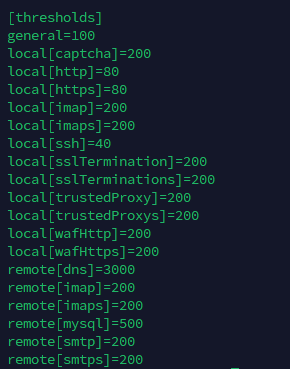
- The default threshold for ports 80 HTTP and 443 HTTPS is 80 connections per IP address. If you want to increase their threshold, then you will need to adjust the following two values in the config.
local[http] = <limit here>
local[https] = <limit here> - Save your changes.
- Synchronize the configuration changes with our cloud using the command:
bitninjacli --syncconfigs - Reload the module with
bitninjacli --module=DosDetection --reloadcommand - Monitor the module logs for detected attacks:
tail -f /var/log/bitninja/mod.dos_detection.log
With the above-mentioned method, you can also adjust these thresholds for the other services listed in the configuration file.
You can check if the changes have taken effect with the
command:bitninjacli --module=DosDetection --show-config
The General threshold setting in the Configurations -> DOS Detection menu does NOT apply to ports 80, 443, 60300, 60301. It only applies to ports that have no specific threshold set up.
Block IP manually
You can block IP addresses manually by challenge listing them or block listing them from the Dashboard.
- Go to the Firewall -> Block list menu, and add the IP addresses to your block list, or use
bitninjacli --blacklist --add=<IP address> - Insert the IP into the search field and click on the “+ challenge list” button, or use
bitninjacli --greylist --add=<IP address>
In this case, we assume that everything is correctly configured.
If you use a Proxy, load balancer, or CDN service, the trusted proxy module must be enabled, and the X-Forwarded-For header must be set up correctly. The instructions are here.
If the WAF module is enabled, either the Transparent proxy mode or the X-Forwarded-For header needs to be set up. The instructions are here.
If you use a Proxy, load balancer, or CDN service, the trusted proxy module must be enabled, and the X-Forwarded-For header must be set up correctly. The instructions are here.
If the WAF module is enabled, either the Transparent proxy mode or the X-Forwarded-For header needs to be set up. The instructions are here.