

Our Defense Robot module is proactively looking for backdoors and malware on the server.
However, the file signatures generated by the Defense Robot are in a validating state by default. This means that the files matching these signatures are only logged but not quarantined to avoid false positive catches.
How to validate file signatures? #
- You can reach the signature validating feature from the Dashboard under the Anti-Malware menu in the Overview section.
- Click on the "VALIDATE MALWARES" button on the dashboard or click here.
- Decide if the file is malware based on its content.
- With the buttons under the view panel, you can
- Publish the signature with the "This is a Malware" button
- Skip the file with the "Not sure" button
- Allow list the file with the "Not a malware" button
The name of the signature is visible above the file's source code:
- File./home/domain/malware.php: Manually generated signature
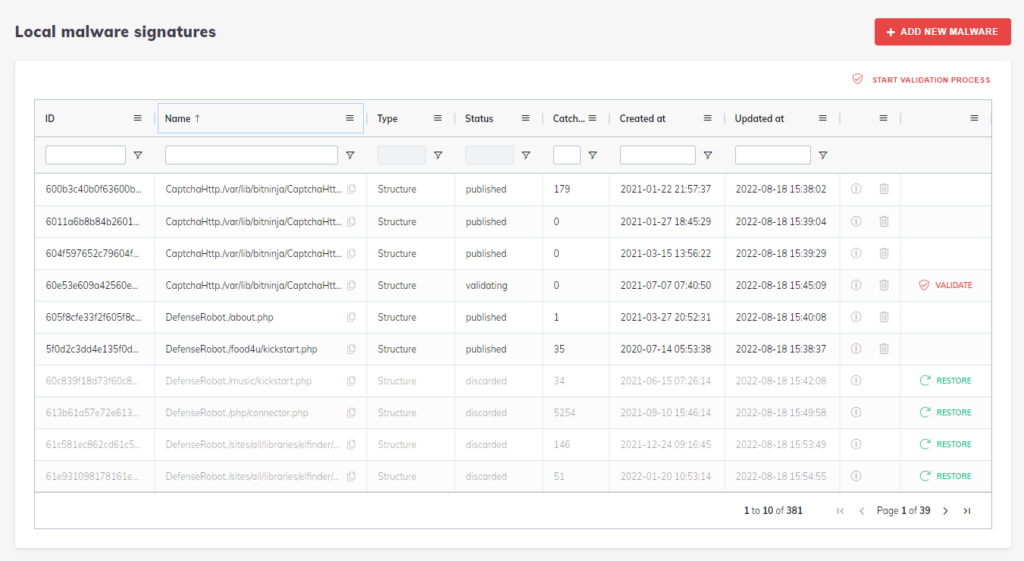
- DefenseRobot./home/domain/malware.php: The Malware signature was created by the Defense Robot module.
- CaptchaHttp./home/domain/malware.php: The file was uploaded to our captcha page by some bot.
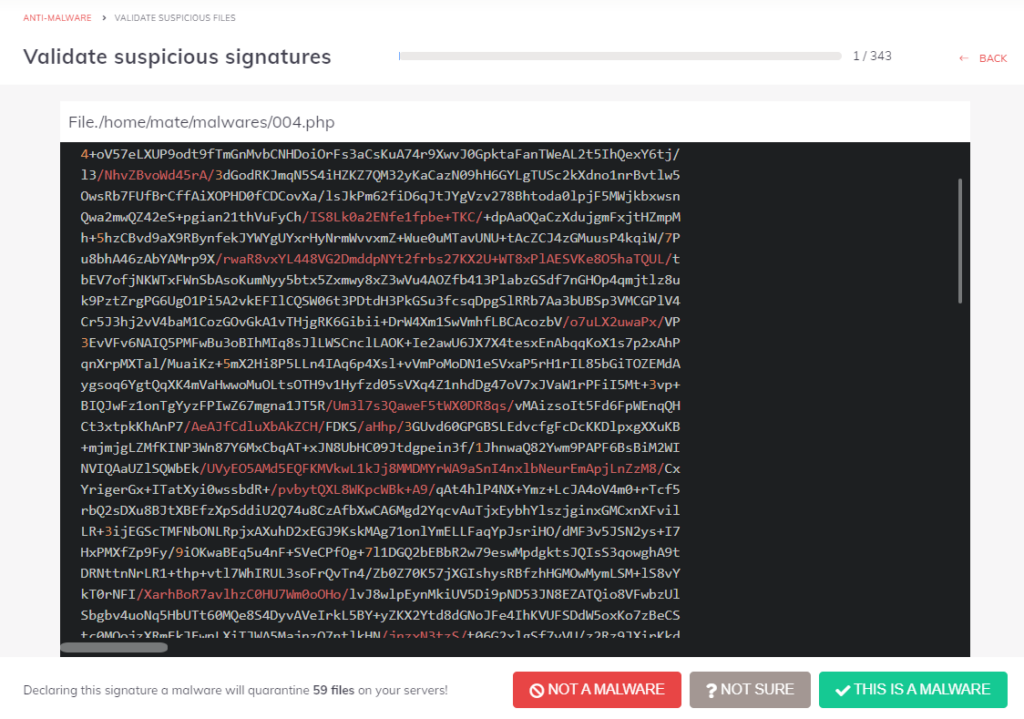
You can also access this feature from the Anti-malware/Local malware signatures menu by clicking the "Start validation process" button.
Upload malware#
You can also upload files from the Dashboard to generate a malware signature. To do so, click on the + Add new Malware button at the top right of the Local malware signatures menu. The signature will be in a validating state, and the signature ID and the number of matching files on your servers will be displayed within 5 minutes in the Table of malware signatures.
In case of accidental validation or discarding (CLI)#
If you have mistakenly clicked on the "This is a malware" button, you can restore and Allow list the files matching the signature from the BitNinja CLI with the following command:
bitninjacli --restore=/path/to/file
If you don't know the original location of the filet, you can list all published signatures with this command, including their original location:
bitninjacli --module=MalwareDetection --list-signatures --state=published
You can also use the file's signature to discard the published signature:bitninjacli --module=MalwareDetection --discard-signature --id=
If you accidentally clicked the "Not a malware" button, you must find the file's signature ID from the BitNinja CLI and change the signature's status.
bitninjacli --module=MalwareDetection --list-signatures --list=white
From here, you will need the malware signature ID.
Then issue this command with the signature ID included.
bitninjacli --module=MalwareDetection --publish-signature --id=